
How to enable “Account Activation Email” in Ultimate Member
Enabling the “Account Activation Email” in the Ultimate Member plugin requires two main steps: setting the user role to require activation and then enabling the email template itself.
Here is the step-by-step guide:
⚙️ Step 1: Set the User Role to Require Email Activation
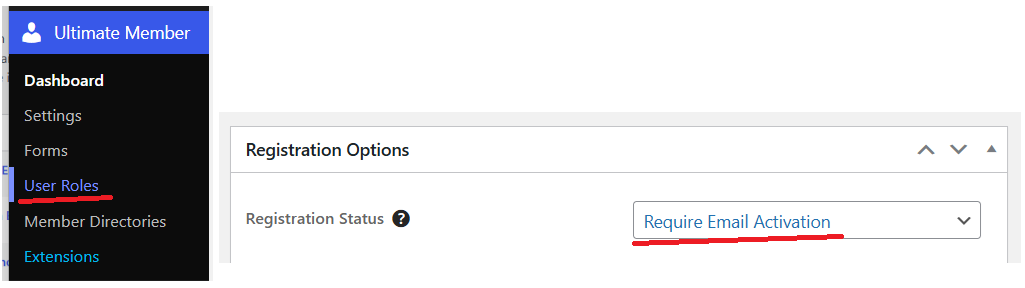
You must tell Ultimate Member that the accounts for new registrants should not be automatically approved, but instead require an activation link. This setting is found within the User Roles.
- Navigate to User Roles: In your WordPress dashboard, go to Ultimate Member $\rightarrow$ User Roles.
- Edit the Default Role: Click the Edit button (or the role name, e.g., “Subscriber” or the default role you assign to new members).
- Find Registration Options: Scroll down to the Registration Options section.
- Change Registration Status:
- Find the setting Registration Status.
- From the dropdown menu, change this setting from “Auto-Approve” to “Require Email Activation”.
- Save Changes: Click the Update Role button to save this change.
Crucial: Once you set the role to Require Email Activation, all new users who register with this role will be set to a “pending” state until they click the link in the email.
📧 Step 2: Enable the Account Activation Email Template
Next, you need to ensure the specific email template that contains the activation link is turned on.
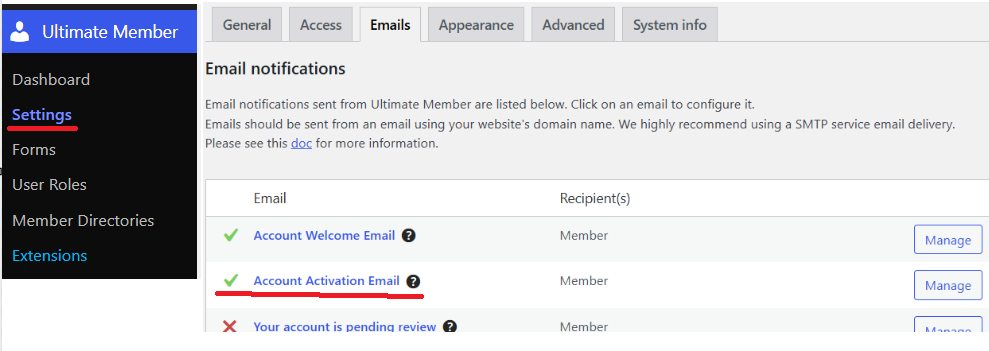
- Navigate to Email Settings: Go to Ultimate Member -> Settings.
- Click the Email Tab: Select the Email tab on the settings page.
- Find the Activation Email: Scroll down and locate the email template named Account Activation Email.
- Manage the Template: Click on the Manage button (or the gear icon) next to the “Account Activation Email” to edit the template.
- Enable the Email:
- At the top of the template settings, make sure the Email Notification toggle or checkbox is Enabled (checked).
- Verify the Shortcode: Double-check that the required activation link shortcode,
{account_activation_link}, is included in the email message body. This is what the user clicks to activate their account.
- Save Changes: Click Save Changes at the bottom of the email template editor.
Your Account Activation Email is now fully enabled! New users will receive the email with the link immediately after registration.
⚠️ Troubleshooting Tip
If users register, but the email never arrives:
- Check Spam/Junk: Ask users to check their spam or junk folders.
- Install an SMTP Plugin: WordPress often struggles to send emails reliably. Install a dedicated SMTP (Simple Mail Transfer Protocol) plugin (like WP Mail SMTP or similar) and configure it with an external mail service (like your web host’s mail server, SendGrid, Mailgun, etc.) to ensure reliable delivery.
Would you like help finding a good SMTP plugin to ensure your activation emails are delivered reliably?